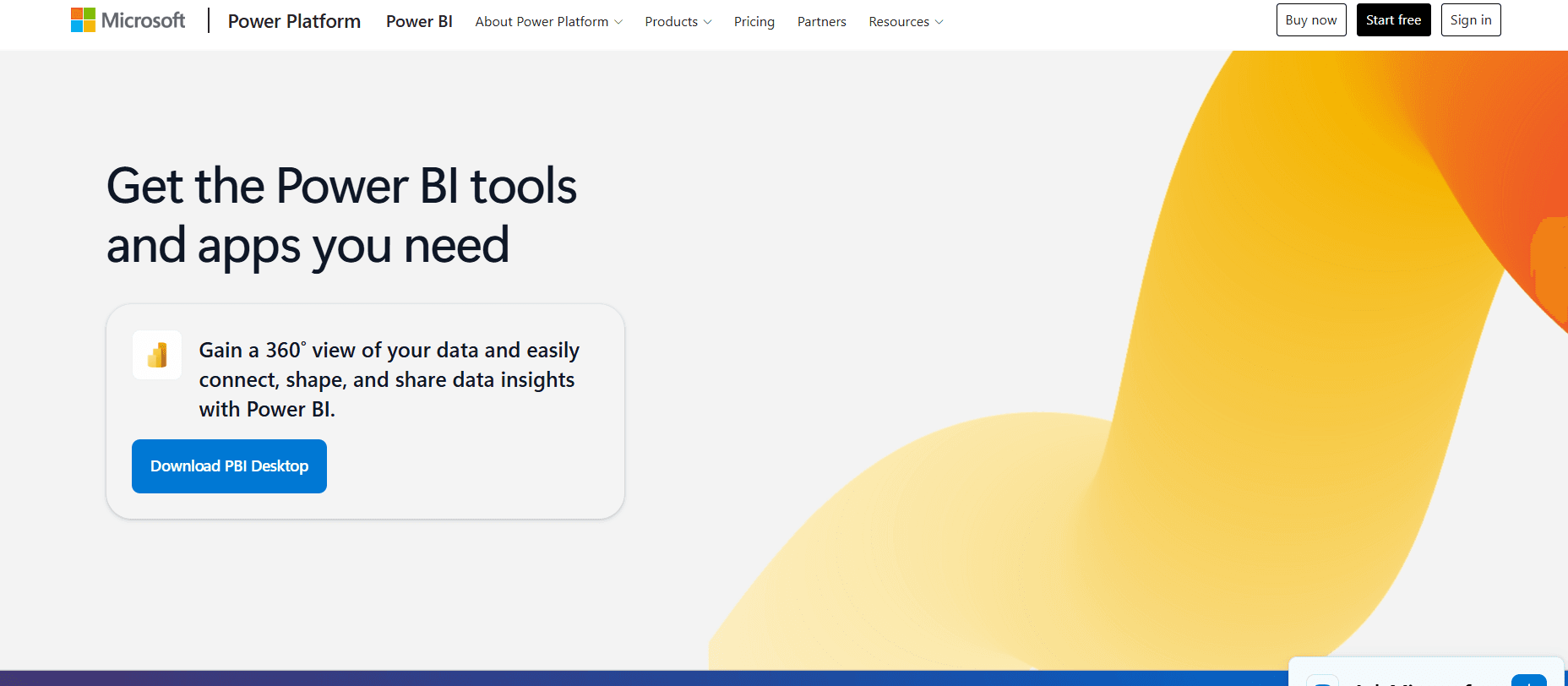
Microsoft Power BI is a powerhouse suite of business analytics tools designed to analyze data and share insights. Developed by Microsoft, it is widely recognized as the industry standard for business intelligence (BI), data visualization, and reporting. Power BI enables organizations of all sizes to connect to hundreds of disparate data sources, simplify data prep, and drive ad-hoc analysis to uncover patterns, trends, and actionable insights.
Whether you are a data analyst tracking complex financial metrics or a business owner monitoring daily sales, Power BI bridges the gap between raw, messy data and visually stunning, easy-to-understand interactive dashboards.
1. What is Microsoft Power BI?
Microsoft Power BI is a unified Business Intelligence platform that converts unstructured, fragmented data from various sources into coherent, visually immersive, and interactive insights. Rather than looking at static spreadsheets or dry tables, Power BI users can interact with their data dynamically—filtering, drilling down, and cross-highlighting elements with just a few clicks.
The platform is designed to be highly scalable. It serves individual users who want to create quick personal reports on local spreadsheets, yet scales up seamlessly to enterprise-level deployments requiring complex data modeling, strict row-level security, and automatic real-time cloud data refreshes.
2. The Core Architecture: The Power BI Ecosystem
Power BI is not just a single app; it is a collaborative ecosystem consisting of several closely integrated components:
- Power BI Desktop: The authoring and design companion. This is a free, local Windows application where analysts connect to data sources, clean and transform data, build complex formulas, and design the actual visual reports.
- Power BI Service (SaaS): The secure cloud-based portal. Once a report is created in Power BI Desktop, it is published here. In the Service, users share reports, build executive dashboards, configure automatic data refreshes, and collaborate with teams.
- Power BI Mobile: Native apps for iOS and Android. These apps allow users to view live reports and dashboards on their mobile devices, featuring responsive layouts and automated push alerts for key metrics.
- Power BI Gateway: The bridge. For organizations using on-premises data warehouses, the gateway securely connects local databases directly to the cloud-based Power BI Service for scheduled data updates.
3. Key Features and Technical Capabilities
A. Extensive Data Connectivity
Power BI can pull data from almost anywhere. It features hundreds of out-of-the-box data connectors, including:
- Files: Excel, CSV, XML, PDF, and folders.
- Databases: SQL Server, Oracle, MySQL, PostgreSQL, and IBM DB2.
- Cloud Platforms: Azure Synapse, Google BigQuery, and Amazon Redshift.
- Online Services: Salesforce, Google Analytics, SharePoint, Dynamics 365, and QuickBooks.
B. Data Cleansing and Transformation (Power Query)
Before data can be visualized, it must be cleaned. Power BI integrates Power Query, an incredibly powerful ETL (Extract, Transform, Load) engine. With Power Query, you can:
- Merge, append, and filter queries.
- Pivot and unpivot tables.
- Split columns, replace values, and remove errors.
- Perform these actions using a simple graphical interface that automatically records every step, allowing you to replicate the clean-up process instantly every time the data refreshes.
C. Advanced Modeling and Analytics (DAX)
For complex calculations, Power BI uses DAX (Data Analysis Expressions), a functional formula language. DAX allows you to create calculated columns, measures, and advanced time-intelligence metrics (such as Year-Over-Year growth or rolling averages) to perform sophisticated statistical analysis.
D. Stunning Visualizations and AI
Power BI offers a vast library of built-in visuals, from standard bar charts and line graphs to advanced maps, key performance indicators (KPIs), and decomposition trees.
- Custom Visuals: Users can access the Microsoft AppSource marketplace to download hundreds of community-built visualizations.
- AI Insights: Power BI features built-in AI capabilities, including the Q&A visual (which allows users to ask natural language questions like “What were our top-selling products in Q3?” and generates a chart automatically) and Smart Narratives (which write text-based summaries of report trends instantly).
4. Why Choose Microsoft Power BI?
- Cost-Effective: The desktop version is completely free, and cloud sharing licenses are highly affordable compared to traditional BI solutions like Tableau or Qlik.
- Microsoft Integration: It works natively with Microsoft 365. You can embed Power BI reports directly into Microsoft Teams, export clean data to Excel, and trigger automated alerts using Power Automate.
- No Code to Low Code: While advanced calculations require DAX, beginners can create highly professional reports simply by dragging and dropping fields.
- Exceptional Security: Features highly granular administrative control, including Row-Level Security (RLS) which ensures users only see data relevant to their specific role or region.
5. Pros and Cons
| Pros | Cons |
| Free, fully functional desktop design application. | Power BI Desktop is only natively supported on Windows. |
| Incredibly fast data compression engine (VertiPaq). | Learning DAX for complex calculations has a steep learning curve. |
| Automatic cloud data refreshes via gateways. | Performance can slow down if data models are poorly optimized. |
| Massive global user community and resource library. | Managing large enterprise models requires paid premium licensing. |
6. Where to Download Microsoft Power BI
Microsoft Power BI is highly accessible, and you can begin using it immediately.
1. For Desktop Creators (Power BI Desktop)
To build reports, you must download the desktop client on a Windows computer.
- Microsoft Store (Recommended): Open the Microsoft Store app on Windows, search for “Power BI Desktop”, and click install. This method ensures your app is updated automatically every month behind the scenes.
- Direct Download: Go to the official website at powerbi.microsoft.com/downloads and download the standalone executable installer.
2. For Cloud Collaborators (Power BI Service)
- There is nothing to download. Simply log into app.powerbi.com through any web browser using your work or school account to share, view, and interact with published dashboards.
3. For Mobile Devices
Keep your business metrics in your pocket.
- Android: Download from the Google Play Store.
- iOS (iPhone/iPad): Download from the Apple App Store.
Summary
Microsoft Power BI is a game-changing tool that turns raw organizational data into a vital business asset. By enabling secure, fast, and highly interactive data reporting, it empowers decision-makers across any organization to rely on concrete numbers rather than intuition.
Final Tip: If you’re building your first dashboard, always keep the “star schema” data model in mind. Keep your numeric facts in one central table, and surround it with descriptive dimension tables (like date, geography, and product) for the fastest performance!