Introduction: The Rebirth of a Classic
For years, the Snipping Tool was a basic, almost forgotten utility in the Windows accessories folder. Users who needed more power often migrated to third-party apps like ShareX or Snagit. However, with the evolution of Windows 11 and the massive updates in 2025 and 2026, Microsoft has integrated cutting-edge AI and screen recording features directly into the core OS.
The 2026 version of Snipping Tool is no longer just for “taking a picture” of your screen. It is a smart document processor, a video recorder, and a privacy protector. In this 1,500-word definitive guide for Milioudis Tech, we will explore the latest features and why you might not need another screenshot tool ever again.
1. What is Snipping Tool? The Core Identity
Snipping Tool is the native Windows application for capturing all or part of your PC screen. In the latest Windows 11 builds, it has merged with “Snip & Sketch” to become a unified, high-performance experience. Its primary advantage is zero friction: it requires no installation, uses minimal system resources, and is deeply integrated into the Windows shell and clipboard.
2. New Features in the 2026 Update: The AI Era
The 2026 version (integrated with the latest Windows 11 Feature Packs) has introduced features that were previously only available in paid professional software.
Text Actions (OCR) and Smart Copy
The standout feature of 2026 is Text Actions. Using local AI models, Snipping Tool can now detect text within any screenshot instantly.
- Copy All Text: With one click, you can extract text from an image and paste it into Word or Notepad.
- Quick Redact: This is a lifesaver for privacy. Snipping Tool can automatically detect sensitive information like emails and phone numbers and black them out with a single click before you share the image.
Integrated Screen Recording with Audio
Gone are the days when you needed a separate app to record your screen. Snipping Tool now features a dedicated Record mode.
- Microphone & System Audio: You can now toggle both your mic and the computer’s internal sounds during recording.
- Pause/Resume: The 2026 update allows you to pause a recording session, move to a different window, and resume, making it perfect for quick tutorials.
HDR Color Correction
As HDR monitors become the standard in 2026, Snipping Tool has been updated to handle High Dynamic Range content. Older versions often produced “washed out” screenshots on HDR screens; the new version correctly maps colors, ensuring your captures look exactly like what you see on your display.
3. Mastering the Capture Modes
Snipping Tool offers four distinct ways to grab your content:
- Rectangular Snip: The most common mode. Click and drag to select a specific box.
- Free-form Snip: Draw any shape around an object. Great for creative projects or isolating non-rectangular UI elements.
- Window Snip: Select a specific application window. This is perfect for documentation as it captures the window perfectly without showing your desktop background.
- Full-screen Snip: Captures everything across all your connected monitors.
4. The Annotation Suite: Editing on the Fly
Once you capture a snip, the editor opens automatically, providing essential tools:
- Ballpoint Pen & Highlighter: With customizable colors and thickness. In 2026, these tools support Pressure Sensitivity for users with a Stylus (like the Surface Pen).
- Shapes and Arrows: Microsoft finally added the ability to draw perfect squares, circles, and arrows, making it much easier to point out specific bugs or features.
- Image Cropping: Re-adjust the borders of your capture without having to retake the shot.
5. Power-User Shortcuts: Speeding Up the Workflow
To truly master Snipping Tool, you must move beyond clicking icons.
- Win + Shift + S: The “Golden Shortcut.” This opens the snip bar at the top of your screen instantly, even if you are in a full-screen game or video.
- Print Screen Key: In 2026, Windows allows you to map the
PrtSckey directly to the Snipping Tool (Settings > Accessibility > Keyboard). - Ctrl + C / Ctrl + V: Snipping Tool automatically copies every capture to your clipboard, allowing for instant pasting into Discord, Teams, or WhatsApp.
6. Security and Privacy: Redaction and Metadata
At milioudis.com, we value digital privacy. The 2026 Snipping Tool excels here:
- Auto-Redaction: As mentioned, the AI can hide emails and phone numbers.
- Metadata Stripping: When you save a snip, Windows now gives you the option to strip “Location” and “Camera info” from the file properties, ensuring you don’t accidentally share your GPS coordinates.
- Local Processing: Unlike some cloud-based alternatives, all OCR and AI processing in Snipping Tool happens on your device. No images are sent to Microsoft’s servers for text extraction.
7. Comparison: Snipping Tool vs. ShareX vs. Snagit
- Vs. ShareX: ShareX is for “Automation Kings” who want to upload to 80 destinations. Snipping Tool is for users who want speed and simplicity without the steep learning curve.
- Vs. Snagit: Snagit is a paid tool for heavy documentation. Snipping Tool now covers 70% of Snagit’s features for free, making it the better choice for 90% of home and office users.
8. Where and How to Download (Official Sources)
The Snipping Tool is a “System App,” meaning it is usually pre-installed. However, if you have uninstalled it or need to update to the 2026 AI version:
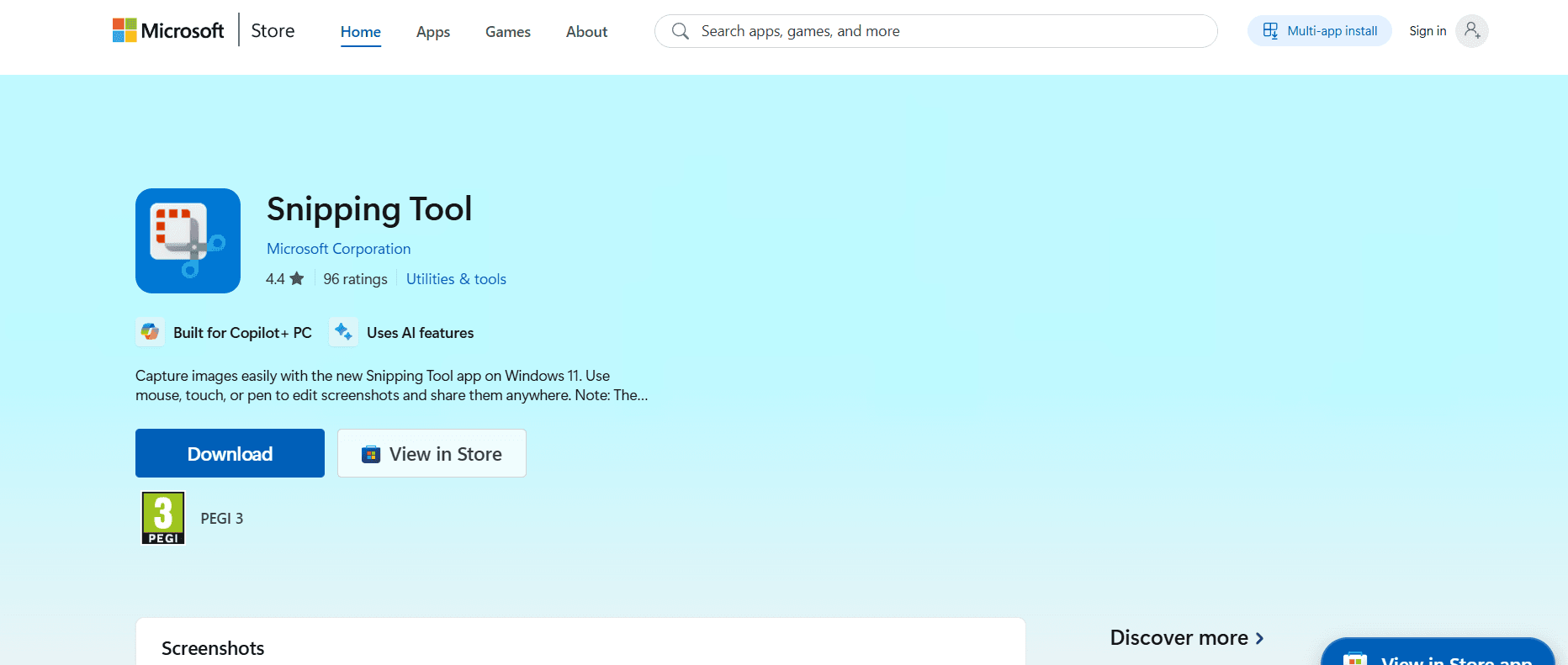
- Microsoft Store: The only official way to get the latest version is the Microsoft Store Snipping Tool Page.
- Windows Update: Ensure your Windows 11 is updated. Go to
Settings > Windows Update > Check for updates. The latest Snipping Tool features are often bundled with “Moment” updates. - Note: Never download “Snipping Tool” from third-party
.exesites; these are often malware. The official version only comes from Microsoft.
9. Troubleshooting Common Issues
- Snip not saving? Check
Settings > System > Notifications. Ensure Snipping Tool has permission to show banners. - OCR not working? Make sure you have the “English (US)” or your local language “OCR” pack installed in Windows Language settings.
- Greyed out screen? This usually happens when another app (like a streaming service) is using “Protected Content” (DRM). Snipping Tool cannot capture Netflix or some banking apps for security reasons.
10. Conclusion: The Final Verdict
The Snipping Tool has come a long way from its humble beginnings in Windows Vista. In 2026, it is a sophisticated, AI-enhanced productivity suite that rivals many paid applications. Its integration, speed, and new privacy features make it an essential tool for every modern professional.
For the readers of milioudis.com, if you haven’t opened the Snipping Tool recently, now is the time. It is a perfect example of how Microsoft is successfully integrating AI to solve everyday problems.