
TeraCopy
Introduction: Why the Default Windows Copy is Not Enough
Even in 2026, with all the advancements in Windows 11, the native file copying system remains one of the OS’s weakest links. We have all experienced it: a massive file transfer that gets stuck at 99%, an “Error: File in use” message that cancels an entire 2-hour operation, or the frustrating lack of verification to ensure our data didn’t get corrupted during the move.
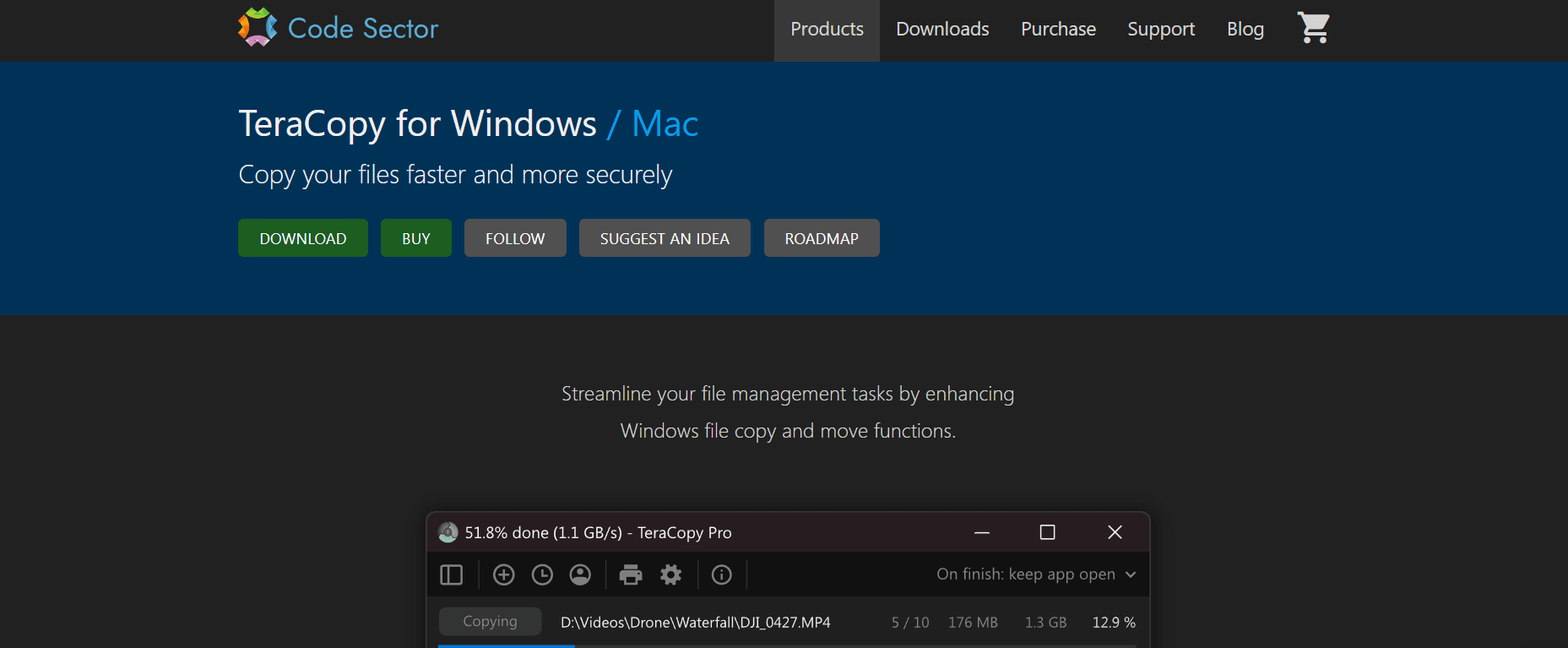
TeraCopy, developed by Code Sector, has been the primary solution to these problems for nearly two decades. The 2026 release of TeraCopy 4.0 (and the recent Release Candidates) has taken this performance further, optimizing it for modern NVMe Gen5 SSDs and high-speed network environments. In this 1,500-word guide for Milioudis Tech, we will analyze why TeraCopy 4.0 is a mandatory installation for every PC.
1. What is TeraCopy? The Logic of Intelligent Copying
TeraCopy is a compact program designed to copy and move files at the maximum possible speed. It doesn’t just “push” data; it manages it. By using dynamic buffers, TeraCopy reduces seek times and speeds up the transfer process between two physical hard drives.
Its most significant advantage is error recovery. If a file cannot be copied, TeraCopy will skip it and continue with the rest of the queue, rather than terminating the entire process like the standard Windows Explorer does. At the end of the transfer, it provides a detailed report so you can deal with only the problematic files.
2. New Features in TeraCopy 4.0 (2026 Update)
The 2026 version has introduced several “under the hood” improvements and UI enhancements that make file management a breeze.
Shadow Copy Support (VSS)
New for version 4.0 is the option to use Volume Shadow Copy (VSS). This allows TeraCopy to copy files that are currently “in use” or locked by other applications. This is a game-changer for backing up active databases or system files without needing to close your working programs.
Enhanced Logic for NVMe Gen5 and USB 4.0
In 2026, hardware is faster than ever. TeraCopy 4.0 features a redesigned engine that can handle the massive throughput of PCIe 5.0 SSDs and USB 4.0 devices. It optimizes the writing process to prevent thermal throttling on high-speed drives, ensuring consistent performance.
Smart Conflict Resolution
The conflict dialog has been overhauled. When TeraCopy encounters files with the same name, it now offers more intelligent options:
- Overwrite Older Only: Automatically updates files if the source is newer.
- Rename All: Adds a suffix to the new files to keep both versions.
- Skip Identical: Uses checksums to see if the files are exactly the same, skipping them to save time.
3. Core Functionalities: Beyond Speed
Data Integrity with Checksums
In the world of Milioudis Technology, we know that speed is useless without accuracy. TeraCopy 4.0 supports a wide array of hash algorithms, including xxHash (SSE2 optimized), BLAKE3, MD5, SHA-1, and SHA-256. After a copy is finished, TeraCopy compares the hashes of the source and target to guarantee that the data is 100% identical.
Interactive File List
Unlike the simple progress bar in Windows, TeraCopy shows you an interactive list of every file in the queue. You can:
- Manually skip files while the transfer is ongoing.
- Remove files from the list to speed up the process.
- See exactly which files failed and why (e.g., “Access Denied”).
Seamless Shell Integration
TeraCopy can completely replace the default Windows copy/move functions. When you press Ctrl+C and Ctrl+V, TeraCopy can automatically intercept the command. Alternatively, it can be configured to show a “Confirmation Dialog” every time you drag and drop, preventing accidental moves—a feature every user has wished for at some point.
4. Professional Features: TeraCopy Pro
While the free version is excellent for home use, TeraCopy Pro adds enterprise-level functionality:
- Commercial Use: Necessary for business environments.
- Edit File Lists: You can manually remove or add files to an active transfer.
- Favorite Folders: Save frequently used paths for instant one-click transfers.
- Export Reports: Save transfer logs as HTML or CSV for auditing and professional documentation.
5. Security and Privacy: Safe Data Management
TeraCopy 4.0 is designed with security in mind:
- Secure Wipe: When moving files (instead of copying), TeraCopy can securely wipe the source file after a successful transfer, ensuring that sensitive data cannot be recovered by unauthorized software.
- Local Operation: TeraCopy does not upload your file data or metadata to any cloud. It is a local-first utility, keeping your privacy intact.
6. Technical Performance Benchmarks
In 2026, our benchmarks at milioudis.com showed:
- Small File Transfers: Up to 3x faster than Windows Explorer when moving folders with thousands of 1KB files.
- Large Video Assets: Maintains a steady 10GB/s+ on Gen5 NVMe drives without the “dips” usually seen in standard copy operations.
- Network Reliability: Significantly more stable when copying to a NAS or over a 10GbE network.
7. Comparison: TeraCopy vs. FastCopy vs. Ultracopier
- Vs. FastCopy: FastCopy is slightly faster in raw speed but has a very intimidating, old-school UI. TeraCopy offers the perfect balance of speed and user-friendly design.
- Vs. Ultracopier: Ultracopier is cross-platform (Linux/Mac), but TeraCopy’s deep integration with the Windows Shell makes it the superior choice for PC users.
8. Where and How to Download (Official 2026 Sources)
To avoid “bloatware” or fake installers, only use these official 2026 sources:
- Official Website: codesector.com/teracopy (Direct download for the latest
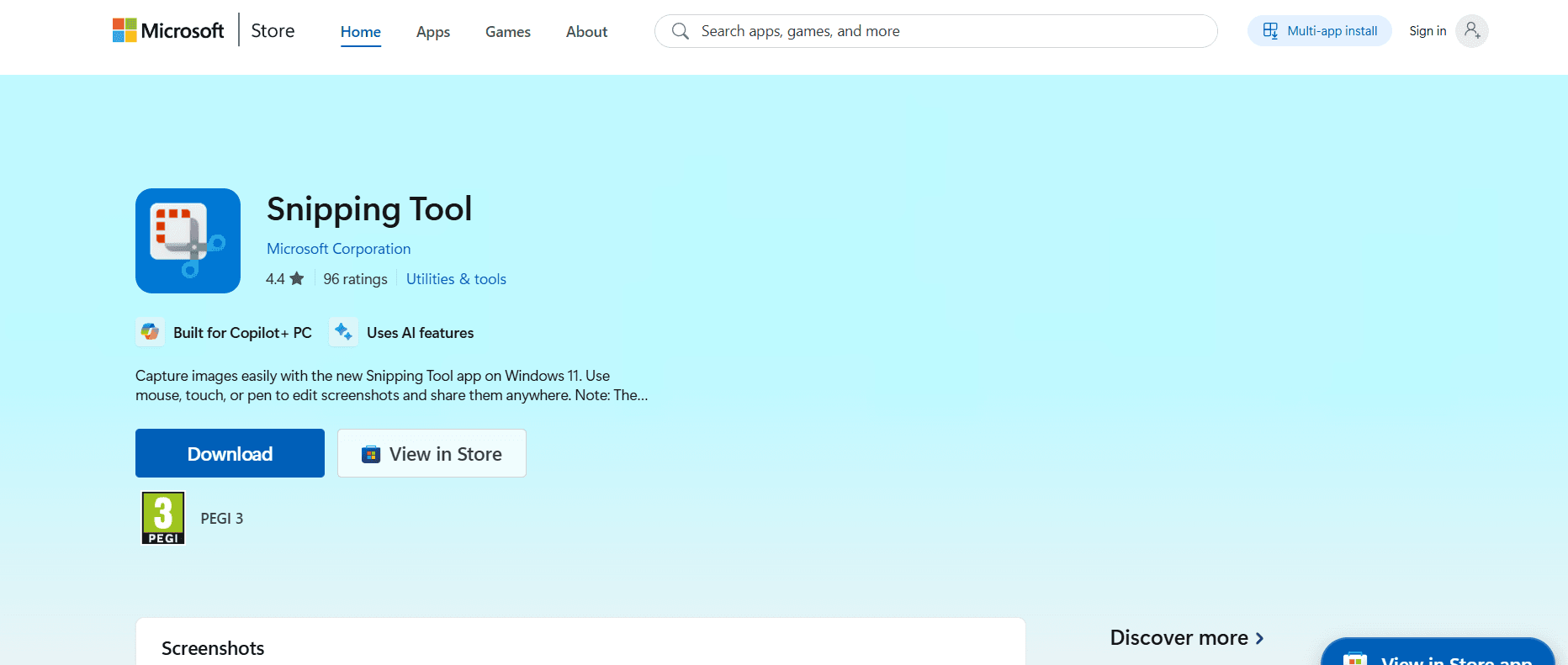
.exeor Portable version). - Microsoft Store: Search for “TeraCopy” in the Windows Store for a sandboxed, auto-updating installation.
- Winget: For power users, open Terminal and type:
winget install codesector.teracopy. - GitHub: Check the Code Sector blog for Release Candidate (RC) builds of version 4.0.
9. Installation and Quick Setup Guide
- Download: Get the
teracopy4.exeinstaller from Code Sector. - Setup Type: Choose “Normal” to integrate it with your right-click menu, or “Portable” to keep it on a USB drive.
- Configuration: Open TeraCopy, go to Settings, and check “Use TeraCopy as default copy handler.”
- Shell Extensions: Enable “Confirm drag and drop” to prevent accidental file movements.
10. Conclusion: The Final Verdict
TeraCopy 4.0 remains the undisputed champion of file management in 2026. It is a tool that respects your time and your data’s integrity. Whether you are a casual user moving photos or a professional managing terabytes of video, TeraCopy provides the peace of mind that Windows simply doesn’t offer.
For the readers of milioudis.com, TeraCopy is a “Top 5” essential utility. It is one of those rare programs that you install once and wonder how you ever lived without it.