
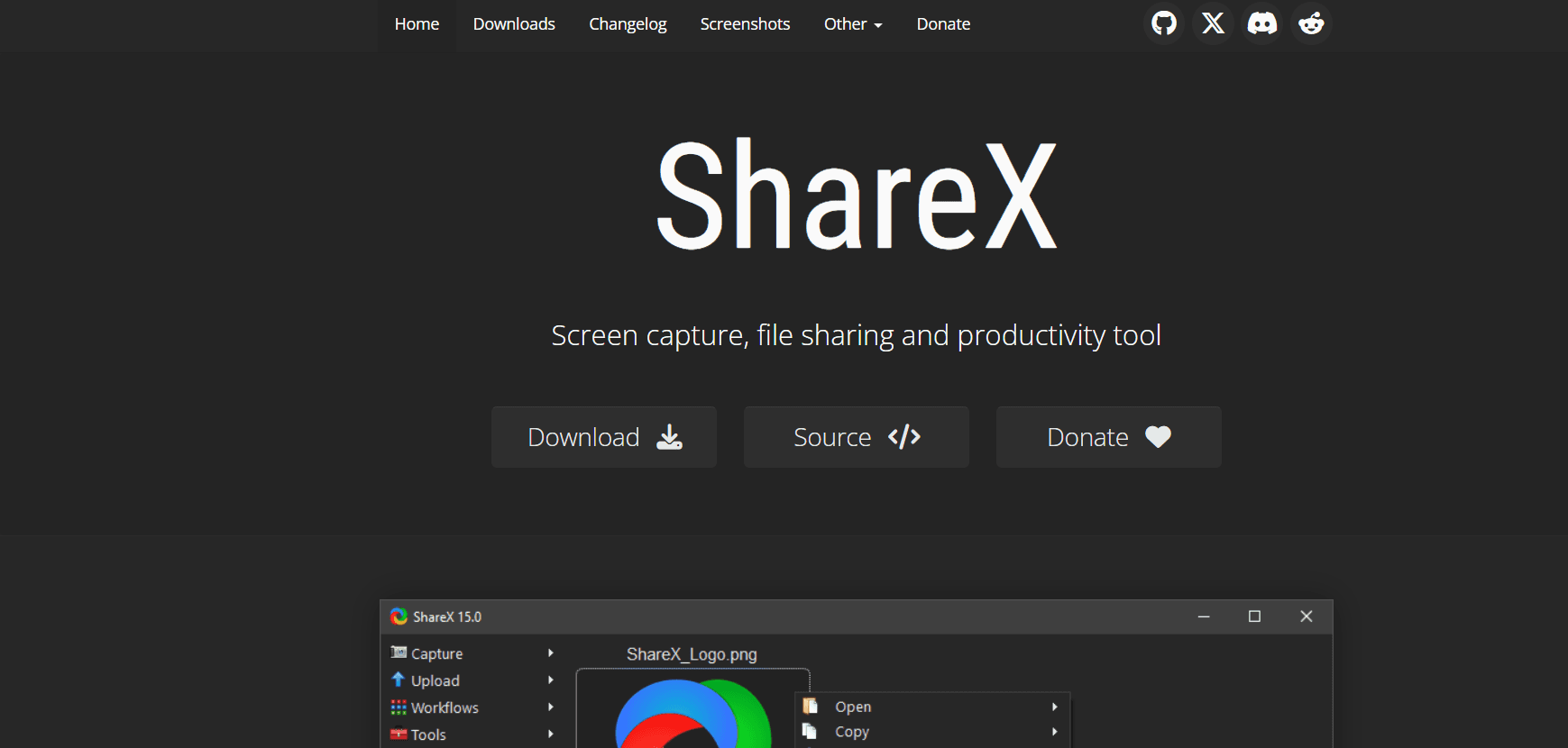
ShareX
Introduction: Why ShareX is the Undisputed King of Screenshots
In the modern digital workflow, capturing what is on your screen is a daily necessity. Windows comes with its native Snipping Tool, and there are many paid alternatives like Snagit. However, for power users, developers, and digital creators, there is only one tool that reigns supreme: ShareX.
ShareX is a free and open-source program that lets you capture or record any area of your screen and share it with a single press of a key. But calling it a “screenshot tool” is a massive understatement. It is a workflow automation engine, a file uploader, a productivity suite, and a developer’s playground all rolled into one. In this 1,500-word definitive guide for Milioudis Tech, we will explore why ShareX is the ultimate productivity software for Windows users.
1. What is ShareX? The Philosophy of Open Source Power
ShareX has been actively developed for over 15 years. Unlike commercial software that hides features behind paywalls or forces you into subscriptions, ShareX is completely free of ads, bloatware, and tracking.
Developed by a dedicated open-source community, its philosophy is to provide infinite customization. If you can think of a screenshot workflow, ShareX can do it. It bridges the gap between taking a quick picture and executing a complex chain of digital events.
2. New Features in the Latest 2026 Releases
The 2026 updates of ShareX have focused on modernization, bringing the classic application into the age of high-DPI displays and modern Windows aesthetics.
Native Windows 11 Fluent Design
While ShareX has always prioritized function over form, the 2026 version features a beautiful overhaul that respects the Windows 11 design language. It supports system-wide Dark Mode seamlessly, with modern toggles and menus that feel native to the OS.
Advanced OCR (Optical Character Recognition) Engine
ShareX’s OCR has received a massive update in 2026. It can now extract text from screen grabs with near-perfect accuracy using updated local libraries. Whether it is a line of code from a video or text from an un-selectable PDF, ShareX can grab it, copy it to your clipboard, and even translate it on the fly.
AV1 Video Encoding
For screen recordings (GIFs and MP4s), ShareX now fully supports AV1 encoding. This means your screen recordings are half the file size of traditional H.264 recordings while maintaining crystal-clear quality. This is a game-changer for sharing quick video tutorials on platforms with strict file limits like Discord or Slack.
3. Core Functionalities: The Screenshot Engine
Every Capture Mode Imaginable
ShareX supports dozens of capture methods:
- Full Screen / Active Window / Monitor: Standard captures.
- Region (Light / Transparent): Select a custom square or freehand shape.
- Scrolling Capture: Perfect for grabbing an entire webpage from top to bottom.
- Auto Capture: Set a timer to take a screenshot every X seconds (great for time-lapses).
Automated Post-Capture Tasks
The true power of ShareX happens after you take the picture. You can set up ShareX to automatically:
- Copy the image to the clipboard.
- Save the image to a specific local folder with a dynamic timestamp.
- Open the image in an editor.
- Apply a watermark.
- Upload the image to an image host (like Imgur) and copy the URL to your clipboard.
All of these actions can happen automatically and instantly from a single hotkey press.
4. Built-In Image Annotations and Effects
You do not need Photoshop or MSPaint when using ShareX. It comes with a built-in image annotator (Greenshot editor integration) that allows you to:
- Add Arrows, Shapes, and Text: Highlight exactly what you are looking at.
- Pixelate / Blur: Instantly hide sensitive information like emails, credit cards, or passwords.
- Magnifier: Zoom in on a tiny portion of the image to show detail.
- Stickers and Emojis: Add visual flare to your screenshots.
Furthermore, ShareX includes an Image Effects system. You can automatically add drop shadows, torn edges, borders, or color adjustments to your screenshots before they are saved or uploaded.
5. Screen Recording: GIFs and MP4s
ShareX is one of the best GIF makers on the market.
- Screen Recording (FFmpeg): By downloading a tiny FFmpeg binary (which ShareX does automatically with one click), you can record your screen as an MP4 or a lightweight GIF.
- Custom Framerates: You can lower the framerate to keep GIF sizes tiny or boost it to 60 FPS for smooth software demonstrations.
6. Destinations: The Ultimate File Uploader
ShareX supports uploading your captures, texts, or files to over 80 different hosting services.
Image Hosting
Instead of manually opening a web browser to upload an image, ShareX can send it directly to:
- Imgur
- ImageShack
- Flickr
- Twitter / X
Text & File Hosting
If you copy a long crash log or piece of code, ShareX can upload it to:
- Pastebin
- GitHub Gist And if you want to upload any random file (like a PDF or ZIP), it supports:
- Dropbox
- Google Drive
- OneDrive
- Mega
- Custom FTP / SFTP servers
7. Productivity Tools: The “Hidden” Utilities
Under the “Tools” menu in ShareX lies a collection of utilities that can replace five or six other standalone programs on your computer:
- Color Picker: Grab the exact HEX, RGB, or CMYK color code of any pixel on your screen.
- Screen Ruler: Measure pixel distances on your screen.
- QR Code Generator/Decoder: Instantly create a QR code for a URL or scan one on your screen.
- Hash Checksum Calculator: Verify file integrity (MD5, SHA-256).
- Video Converter: Convert local videos from one format to another using FFmpeg.
- Image Combiner: Stitch multiple images together horizontally or vertically.
8. Security and Privacy: Your Data, Your Control
For the readers of milioudis.com, privacy is a top priority. ShareX excels in this category:
- No Built-in Tracking: There are no analytics spying on what you capture.
- Choose Your Cloud: You choose where your files go. If you want 100% privacy, you can disable all uploaders and keep your files strictly on your local hard drive.
- Personal API Keys: ShareX allows you to use your own private API keys for services like Imgur or Google Drive, meaning your uploads are tied to your personal, private accounts, not shared public pools.
9. Where and How to Download ShareX (Official Sources)
To avoid malicious clones or fake installers, only download ShareX from its official, trusted repositories:
- Official Website: getsharex.com
- GitHub Repository: github.com/ShareX/ShareX (For the source code and direct
.exeportable zips). - Microsoft Store: (Highly Recommended for easy auto-updates). You can find it by searching for “ShareX” in the Windows Store.
- Package Managers: For developers, you can open Terminal and run:
winget install ShareX.ShareX.
10. Installation and Quick Setup Guide
- Download and Run: Download the installer or get it from the Microsoft Store.
- Initial Hotkeys: By default,
Print Screenwill take a region capture. You can change this in the Hotkey Settings. - Set your Destination: Go to
Destinations > Image Uploaderand select where you want your images to go (or set it to “Local File only” if you don’t want to use the cloud). - Configure “After Capture” Tasks: Check the boxes for what you want to happen automatically (e.g., Save image to file, Copy image to clipboard).
11. Conclusion: The Verdict
ShareX is a masterclass in software development. It proves that utility software doesn’t need a multi-million dollar corporate budget to be the best in its class. It gives you absolute power over your screen captures and file sharing, saving hours of manual work every single week.
For the followers of milioudis.com, ShareX is an unconditional recommendation. If you use a Windows PC for work, content creation, or gaming, installing ShareX will permanently change how you use your computer for the better.