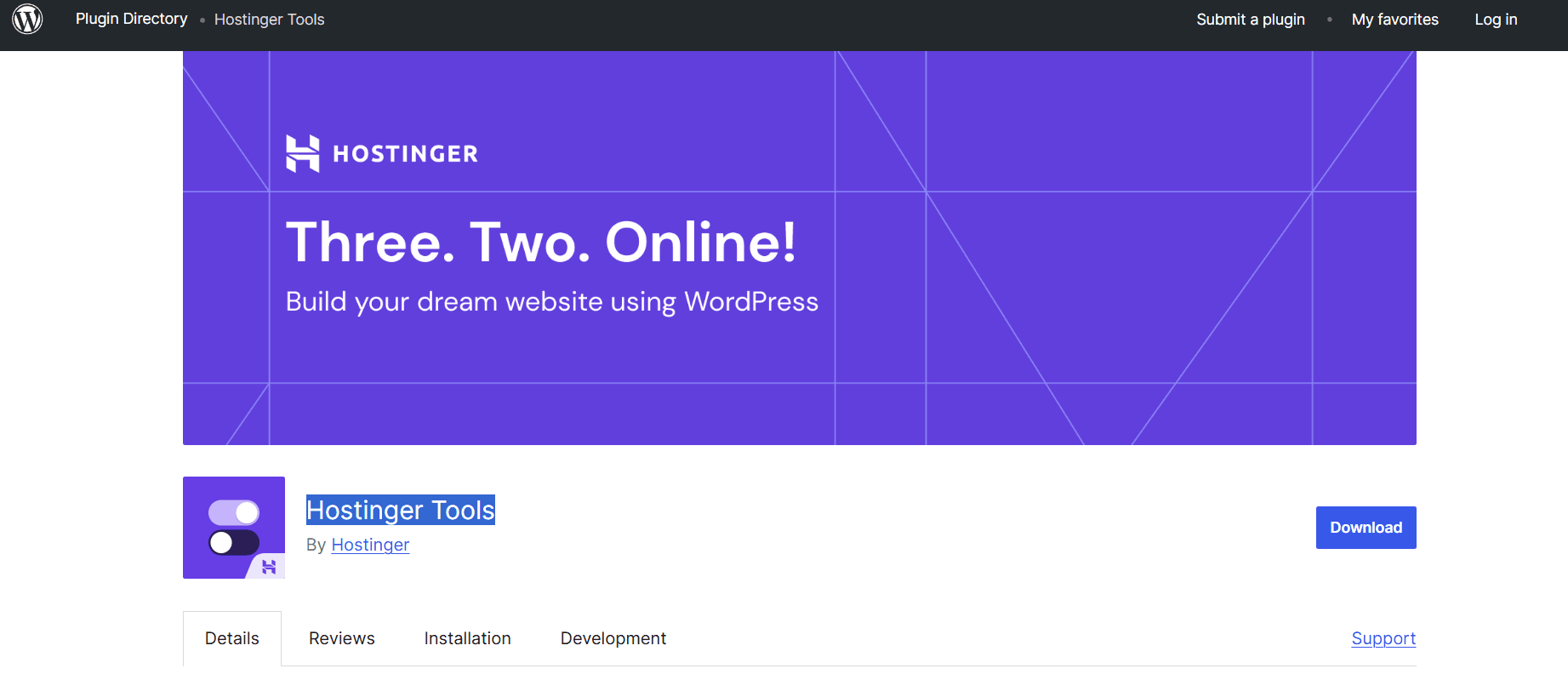
Hostinger Tools
Introduction: Why Your WordPress Site Needs the Hostinger Edge
In the digital landscape of 2026, web hosting has moved beyond mere storage. It is now about performance, automation, and AI-driven efficiency. While WordPress is powerful on its own, it often feels disconnected from the underlying server infrastructure. This is where the Hostinger WordPress Plugin (officially renamed as Hostinger Tools in the latest updates) comes into play.
Designed specifically for users on Hostinger’s Managed WordPress, Business, and Cloud plans, this plugin acts as a central nervous system for your website. It doesn’t just “optimize” your site; it automates security, handles complex server-side tasks, and provides a suite of AI tools that can generate content in seconds. In this 2,000-word deep dive for Milioudis Tech, we will explore the 2026 version of the Hostinger ecosystem and how to use it to dominate the search rankings.
1. What is the Hostinger Tools Plugin?
The Hostinger Tools plugin is an all-in-one management suite pre-installed on every WordPress instance hosted by Hostinger. In 2026, it has been split into a modular system to ensure your site remains lightweight:
- Hostinger Tools: Manages core site info, maintenance, and security.
- Hostinger Easy Onboarding: A guided checklist for launching new sites.
- Hostinger Reach: A new addition for AI-powered email marketing and lead generation.
- AI Content Creator: The “brain” of the plugin that helps you write posts directly from the dashboard.
2. New Features in the Latest 2026 Release (Version 3.x)
The 2026 update (v3.0.60 and above) has introduced groundbreaking features that change how we manage WordPress.
AI Agent “Kodee” Integration
The biggest addition this year is Kodee, Hostinger’s AI assistant. Unlike a simple chatbot, Kodee can perform over 350 admin-level actions. You can literally ask Kodee: “Hey Kodee, create a staging environment and update all my plugins,” and it will execute the command without you having to navigate through the hPanel.
AI Content Creator 2.0
The AI Content Creator is now a native Gutenberg block. It doesn’t just write text; it:
- Suggests Semantic Keywords: It analyzes the top 10 Google results for your topic and suggests keywords to include.
- Tone Adjustment: You can switch between “Professional,” “Witty,” or “Empathetic” tones with one click.
- Automatic Image Sourcing: It can suggest relevant images from Hostinger’s integrated library to match your text.
Advanced Maintenance Mode with Lead Capture
The Maintenance Mode isn’t just a static page. It now integrates with Hostinger Reach, allowing you to collect email subscribers even before your site goes live. It features modern design templates that look beautiful on both desktop and mobile.
3. Performance Mastery: LiteSpeed and Beyond
Hostinger uses LiteSpeed Web Servers, which are significantly faster than the traditional Apache servers used by competitors. The Hostinger plugin acts as the control center for this technology.
LiteSpeed Optimization Profiles
Instead of manually tweaking hundreds of cache settings, the plugin offers “One-Click Profiles.” Whether you run a blog like milioudis.com or a heavy E-commerce store, you can select a profile that automatically configures:
- Object Cache (Redis/Memcached): To speed up database queries.
- Image Optimization: Automated WebP conversion and lazy loading.
- CSS/JS Minification: Reducing file sizes to achieve a perfect 100/100 score on Google PageSpeed Insights.
4. Security: The Fortress Mentality
Cyber threats are more sophisticated than ever. The Hostinger Tools plugin provides enterprise-grade security for free:
- Brute Force Protection: It automatically identifies and blocks IP addresses that try to “guess” your login credentials.
- AI Scan Engine: It periodically scans your WordPress core files for malware, using AI to detect “zero-day” threats that traditional scanners might miss.
- Downtime Monitoring: If your site goes offline for even 60 seconds, you receive an instant push notification via the Hostinger mobile app.
5. SEO and Marketing: The “Reach” Revolution
With the 2026 update, Hostinger has integrated Hostinger Reach directly into the WordPress dashboard.
- Automated Newsletters: Using the AI reference tool, you can turn a blog post into a newsletter in under 30 seconds.
- SEO Analysis: The plugin provides a “Pre-Publishing Checklist” that checks your meta descriptions, alt tags, and keyword density.
6. How to Use the AI Content Creator (Step-by-Step)
For the readers of Milioudis Technology, here is how to maximize the AI features:
- Open a New Post: Go to
Posts > Add New. - Insert AI Block: Search for the “AI Content Creator” block.
- Define Your Topic: Tell the AI what you want to write about (e.g., “The best image viewers for Windows 11”).
- Keyword Entry: Add the focus keywords you want the AI to prioritize.
- Generate & Refine: The AI will produce a 1,000+ word draft.
7. Comparison: Hostinger Plugin vs. Standard WordPress
- Standard WordPress: Requires 10+ separate plugins for SEO, Cache, Security, and AI.
- Hostinger Plugin: Consolidates all these into a single, high-performance environment. It reduces “plugin bloat,” which is the #1 cause of slow websites.
8. Where and How to Download (Official Sources)
Since this is a system-level plugin, the way you get it is slightly different from standard plugins:
- Automatic Installation: If you use Hostinger’s “Auto Installer” to set up WordPress, the plugin is installed by default.
- WordPress Repository: If you accidentally deleted it, you can find it by searching for “Hostinger Tools” in the
Plugins > Add Newsection of your dashboard. - Official Link: WordPress.org/plugins/hostinger/
- hPanel: You can also manage and “Force Reinstall” the plugin directly from the Hostinger hPanel.
9. Installation and Quick Setup Guide
- Activate: Once installed, click “Activate.”
- Link to hPanel: Click the “Connect to Hostinger” button to sync your server settings.
- Onboarding: If it’s a new site, follow the “Easy Onboarding” checklist.
- Performance Check: Go to the “Tools” tab and ensure “Object Cache” and “LiteSpeed” are enabled.
10. Conclusion: The Verdict
The Hostinger WordPress Plugin is no longer an “optional” utility; it is the heart of a successful website. By combining server-level speed, AI content generation, and robust security, it allows creators on milioudis.com to focus on what matters: Creating great content.