


Active@ Partition Manager
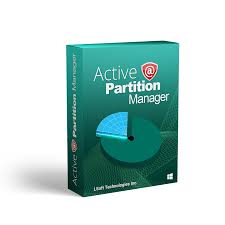
As storage technology advances with blazing-fast Gen5 NVMe SSDs and massive 20TB+ hard drives, the need for a reliable, safe, and efficient partition manager is more critical than ever. In 2026, while many tools have moved to expensive subscription models, LSoft Technologies continues to provide one of the most trusted utilities in the industry: Active@ Partition Manager.
In this deep dive for Milioudis Technology And Software News, we explore the latest Version 25 (2026 Release), its advanced file system support, and why this freeware remains a “must-have” for every PC enthusiast.
1. What is Active@ Partition Manager?
Active@ Partition Manager is a specialized freeware application designed to help you manage storage devices and the logical drives or partitions they contain. Unlike the built-in Windows Disk Management, which often feels limited and clunky, Active@ Partition Manager offers a more intuitive interface and a “safety-first” approach to disk manipulation.
It allows you to create, delete, format, and resize partitions without having to reboot your system (in most cases), making it an incredibly efficient tool for both home users and IT professionals.
2. New Features in the 2026 Version (v25.x)
The 2026 update brings significant improvements to handle the latest operating systems (Windows 11 24H2 and Windows 12) and modern hardware architectures.
A. Extended File System Support
While most tools only handle FAT and NTFS, Active@ Partition Manager 2026 recognizes almost everything you can throw at it:
- Windows: FAT, NTFS, exFAT, ReFS.
- Apple: HFS+.
- Linux: Ext2, Ext3, Ext4, BtrFS, JFS, XFS.
- Unix: UFS.
B. “Smart Rollback” Technology
One of the most praised features in 2026 is the Rollback Partition Changes tool. Before any critical change is made (like formatting or deleting a partition), the software creates a backup of the partition layout. If you realize you’ve made a mistake, you can “Undo” the operation and restore your previous layout instantly.
C. MBR to GPT Seamless Conversion
As modern PCs require GPT (GUID Partition Table) for UEFI booting and Windows 11/12 compatibility, this tool allows you to convert older MBR disks to GPT or vice-versa with improved safety protocols for 2026.
D. Large FAT32 Support
Windows natively prevents creating FAT32 partitions larger than 32GB. Active@ Partition Manager breaks this limit, allowing you to create FAT32 partitions up to 1TB—perfect for older gaming consoles, car stereos, or specialized industrial equipment.
3. Why It Stands Out in 2026
In a market saturated with “bloated” software, Active@ Partition Manager sticks to the basics and does them perfectly.
- No Reboot Required: Most configuration changes take effect immediately without needing to restart your computer.
- Low Resource Footprint: The installer is small (around 20MB), and the program doesn’t run unnecessary background services that slow down your PC.
- Advanced Attribute Editing: You can mark partitions as “Active,” change drive letters, and edit boot sectors directly (for advanced users).
- Multiple USB Partitions: It allows you to create several partitions on a single USB flash drive, a feature that Windows often struggles with.
4. How and Where to Download (Official Source)
As always at milioudis.com, we emphasize security. Do not download partition tools from unofficial mirrors or “repackaged” sites, as disk utilities require high-level system permissions and are often targets for malware.
The Official Download Source:
To get the authentic, safe, and latest version, download only from the LSoft Technologies official portals:
Official Site:www.lsoft.net/partition-manager/
Alternative Official Portal:www.pcdisk.com
Installation Steps:
- Visit the official link above.
- Click on the “Download Freeware” button for the Windows Installer.
- The file name should typically be
PartManager-Setup.exe. - Run the installer and follow the wizard. It is 100% clean—no bundled ads or toolbars.
5. Free vs. Paid (Active@ Data Studio)
Is it really free? Yes. The “Active@ Partition Manager” is completely freeware for both personal and commercial use.
However, if you need professional-grade features like Partition Recovery (recovering a deleted partition with its data) or Disk Cloning, LSoft offers the Active@ Data Studio bundle. For 90% of users who just need to organize their hard drives and resize volumes, the Freeware version is more than enough.
6. Pro Tips for Using Partition Manager Safely
Even with the best tools, messing with partitions carries risk. Follow these tips from Milioudis Technology:
- Always Backup: Before resizing a partition that contains important data, ensure you have a backup on an external drive.
- Check for Errors: Run a “Disk Scan” (chkdsk) before resizing to ensure the file system is healthy.
- Laptop Users: Always keep your laptop plugged into power. A power failure during partition resizing can lead to data loss.
- The “Rollback” Button: Familiarize yourself with the Rollback tool before you start. It’s your safety net.
7. Technical Specifications for 2026
- OS Support: Windows 12, 11, 10, 8, 7 and Windows Servers (2022, 2019, etc.).
- Hardware: Full support for NVMe, SSD, SATA, IDE, and USB 4.0 drives.
- Architecture: Optimized for both x64 and ARM64 (new Windows laptops).
8. Final Verdict
In 2026, Active@ Partition Manager remains a rare gem in the software world: a truly free, powerful, and clean utility. It doesn’t nag you with ads, and it doesn’t hide essential features behind a paywall. Whether you are setting up a new SSD or trying to fix a messy USB drive, this tool is the professional choice for the job.
Pros:
- 100% Free for all users.
- Support for a vast range of file systems (Linux, Mac, Windows).
- Includes a “Rollback” safety feature.
- Very lightweight and fast.
Cons:
- Does not include disk cloning in the free version.
- The interface is functional but looks a bit “classic” (not as modern as some competitors).