Introduction: Why Your Workflow Needs a File Management Upgrade
In the digital landscape of 2026, we are managing more data than ever before. From massive 8K video projects to complex software repositories, the standard Windows File Explorer often feels like a relic of the past. It’s slow, lacks deep customization, and its tab management is rudimentary at best.
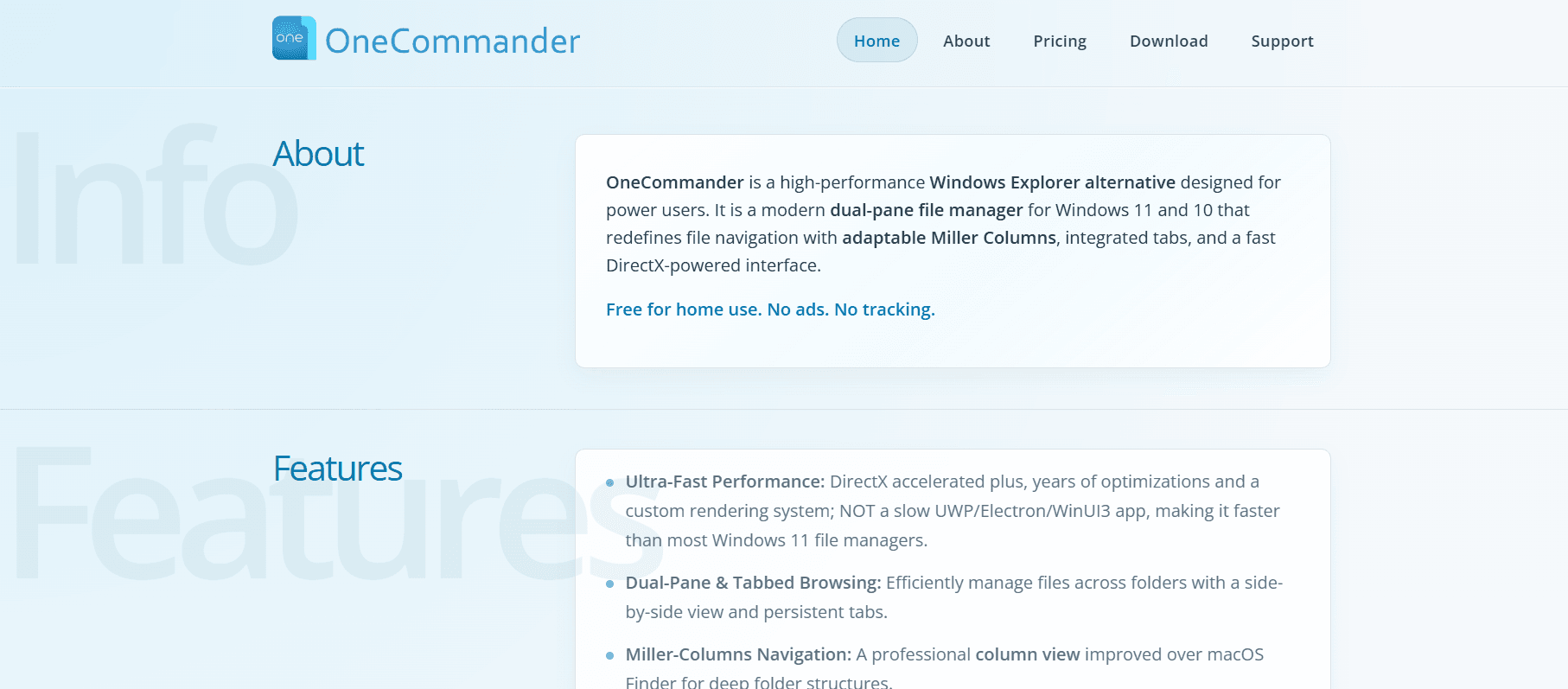
OneCommander is the answer to these frustrations. It isn’t just a “skin” for Windows Explorer; it is a high-performance, DirectX-powered file manager designed from the ground up for efficiency. In this 1,500-word masterclass for Milioudis Tech, we will explore the 2026 version of OneCommander and why it has become the gold standard for professional file organization.
1. What is OneCommander? The Philosophy of Speed
OneCommander is a modern file manager for Windows 10 and 11 that redefines how you interact with your storage. Developed by Milos Paripovic, it focuses on information density and ergonomic navigation.
Unlike many modern apps built on slow web technologies (Electron or UWP), OneCommander is a high-performance desktop application. It uses DirectX acceleration for its interface, ensuring that even if you have a folder with 50,000 files, the scrolling remains buttery smooth at 144Hz+.
2. New Features in the Latest 2026 Release (V3.x & Beyond)
The 2026 updates have brought OneCommander to a new level of maturity, focusing on AI integration and modern Windows 11 aesthetics.
Mica and Acrylic Design Integration
OneCommander now fully supports the Windows 11 Mica and Acrylic effects. The interface is semi-transparent, adopting the colors of your wallpaper, making it feel like a native part of the OS. It is arguably the best-looking file manager ever made for PC.
AI-Driven Smart Tags
New for 2026, OneCommander features an AI Tagging System. It can automatically scan the contents of your folders and suggest tags based on file types, dates, or even visual content in photos. This allows you to filter “Work Projects” or “Vacation Photos” instantly, regardless of where they are stored.
Enhanced Miller Columns
OneCommander has perfected the Miller Columns view (originally made famous by macOS Finder). In the 2026 version, these columns are dynamic, automatically resizing based on filename length and providing a “breadcrumb” path that makes navigating deep directory structures incredibly fast.
3. Core Functionalities: The Dual-Pane Powerhouse
True Dual-Pane Workflow
The heart of OneCommander is its Dual-Pane Layout. You can view สอง folders side-by-side (either horizontally or vertically). This makes moving files from a download folder to a project directory a simple “drag and drop” without having to juggle multiple windows.
Built-in File Preview (The Spacebar Magic)
One of the most loved features is the Quick Preview. Just like on a Mac, you can select any file (image, PDF, video, or code) and hit the Spacebar. A high-speed preview window pops up instantly without needing to launch the full application (like Photoshop or Word).
Advanced Tabs and Bookmarks
OneCommander handles tabs like a pro web browser. You can:
- Pin Tabs: Keep your most-used folders always open.
- Color-Code Tabs: Visually distinguish between your SSD, HDD, and Network drives.
- Session Restore: OneCommander remembers exactly where you were, even after a PC restart.
4. Technical Features for Developers and IT Pros
Long Path Support
Windows has a notorious 260-character limit for file paths. OneCommander bypasses this limitation, allowing you to manage files buried deep in complex folder structures that would normally crash the standard File Explorer.
File Automator and RegEx Renaming
If you need to rename 500 files at once, OneCommander’s RegEx (Regular Expression) Renamer is a lifesaver. You can replace strings, add timestamps, or change file extensions in bulk with absolute precision.
Integrated To-Do and Notes
One of the most unique features is the ability to add Notes and To-Do lists directly inside any folder. For example, if you have a “Project Alpha” folder, you can leave a note for yourself about what needs to be done next. The note stays within that folder context.
5. Security and Privacy: A Local-First Utility
At Milioudis Technology, we prioritize privacy. OneCommander is a “Privacy-First” tool:
- No Tracking: The app does not collect data on what files you are browsing.
- No Cloud Requirement: It works entirely offline, though it integrates beautifully with OneDrive, Dropbox, and Google Drive if you use them.
- Memory Safe: The 2026 version is built using memory-safe protocols (ASLR and DEP) to prevent exploits.
6. Customization: The Designer’s Dream
OneCommander is fully skinnable. For the creative audience at milioudis.com, this is a huge plus.
- XAML Themes: You can edit the XAML files to change every color, font, and icon in the app.
- Folder Icons: You can assign custom icons or colors to specific folders to make them stand out.
- File Age Coloring: OneCommander can automatically color-code files based on how old they are (e.g., files modified today are bright green, while files from last year are gray).
7. Comparison: OneCommander vs. Files App vs. Total Commander
- Vs. Files App: The “Files” app is beautiful but can be slow. OneCommander is much faster and has more “Pro” features like Miller Columns.
- Vs. Total Commander: Total Commander is the “king of the 90s.” It is powerful but has a very steep learning curve and looks outdated. OneCommander offers the same power with a 2026-ready interface.
8. Where and How to Download (Official 2026 Sources)
To ensure your security and receive automatic updates, use these official links:
- Official Website: onecommander.com (The best place for the Portable Version).
- Microsoft Store: Download from the Store. This version is sandboxed for extra security.
- Chocolatey/Winget: Power users can install via terminal:
winget install OneCommander.
9. Installation and Setup Guide
- Choose Your Version: Use the “Store Version” for easy updates or the “Portable Version” if you want to keep your settings on a USB drive.
- Initial Setup: When you first run it, OneCommander will ask if you want “Standard Dual Pane” or “Miller Columns.” (I recommend Miller Columns for the best experience).
- Set as Default (Optional): You can configure OneCommander to take over
Win+Eso it replaces the standard File Explorer entirely. - Link QuickLook: For the best preview experience, install the QuickLook app from the Microsoft Store; OneCommander integrates with it natively.
10. Conclusion: The Verdict
OneCommander is not just a utility; it is a productivity multiplier. It transforms the tedious task of file management into a streamlined, high-speed experience. In 2026, it stands as the most sophisticated and visually stunning alternative to the Windows File Explorer.
For the readers of milioudis.com, if you spend more than an hour a day on your PC, OneCommander is an essential tool. It is free for home use, and the “Pro” features are worth every penny for business users.