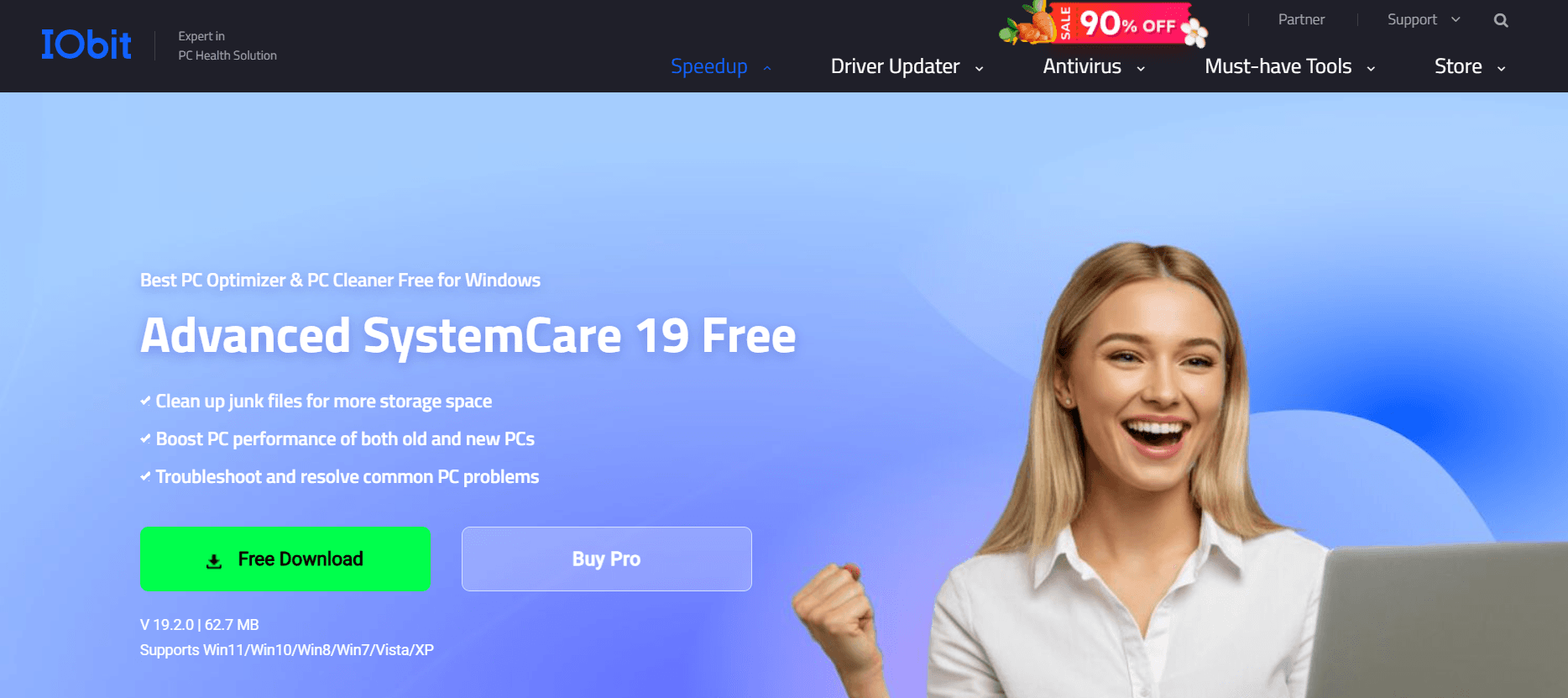
To give you a comprehensive understanding of Advanced SystemCare 19 Free (ASC 19), we need to look beyond the marketing and dive into how it actually interacts with your operating system, its architectural changes for 2026, and the practical steps for a secure deployment.
At its core, ASC 19 is an “orchestrator” for Windows maintenance. While Windows has built-in tools like Disk Cleanup and Task Manager, ASC 19 integrates them into a single, AI-driven interface designed for users who want “set-and-forget” performance.
1. The Architecture of Version 19: What’s New?
The 19th edition isn’t just a skin update. It was built to address the complexities of Windows 11’s latest builds and the increasing footprint of modern web browsers and AI-integrated applications.
The AI Mode 2.0
In previous versions, “AI Mode” was a glorified term for a preset list of scan locations. In version 19, the engine uses Machine Learning to analyze your system’s specific bottleneck. If you are a gamer, it prioritizes RAM release and background service suspension. If you are an office worker, it focuses on registry integrity and browser cache management.
Deep Cleaning for AI Bloatware
With the explosion of local AI tools (like Copilot caches and local LLM temp files), Windows accumulates “new types” of junk. ASC 19 includes a specialized module to identify and purge these massive temporary datasets that standard cleaners often miss.
Privacy Shield Enhancements
The digital landscape of 2026 is privacy-heavy. ASC 19 has updated its Privacy Trace cleaning to include over 200+ third-party applications and all major browsers (Chrome, Edge, Firefox, and Opera), ensuring that your “digital footprint” is wiped after every session.
2. Key Features of the Free Version
While IObit keeps its most powerful “Active Optimization” for the Pro version, the Free version remains surprisingly robust:
- Junk File Clean: Scans and removes gigabytes of useless files, including Windows update leftovers, thumbnail caches, and temporary log files.
- System Reinforce: A security-focused tool that checks for system weaknesses (like disabled firewalls or open remote desktop ports) and offers one-click fixes.
- Startup Optimizer: This is perhaps the most useful feature. It categorizes startup items into “Necessary,” “Optional,” and “Useless,” allowing you to prevent apps like Spotify or Steam from slowing down your boot process.
- Internet Booster (Basic): It optimizes browser settings to improve page loading speeds, though the “300% boost” is reserved for the Pro version.
- Software Updater: It tracks the versions of apps like VLC, WinRAR, and Chrome. Keeping these updated is a primary defense against zero-day security exploits.
3. The Download & Installation Guide: A “Clean” Walkthrough
Because Advanced SystemCare is free, IObit generates revenue through “bundleware” (promoting their other products during installation). To get a clean installation, follow this exact protocol:
Step 1: Secure the Installer
- Navigate to the Official IObit Website. Avoid third-party “crack” sites or “free key” sites, as these often contain malware.
- Click “Free Download.” You will likely be redirected to a hosting partner like MajorGeeks or CNET Download. This is normal.
- Save the
.exefile to your desktop.
Step 2: The “Custom” Installation (Crucial)
- Launch the installer.
- STOP: Do not click the big “Install” button yet.
- Look for the “Custom Install” text (usually in small blue letters) at the bottom. Click it.
- Choose your installation folder and decide if you want a desktop icon.
- Click “Install.”
Step 3: Decline the “Special Offers”
- The installer will now show a series of “Limited Time Offers” (e.g., “Install IObit Uninstaller for Free” or “Get iTop VPN”).
- Carefully select “No thanks” or “Decline” for each of these. If you just click “Next,” you will end up with three extra programs you didn’t ask for.
- When asked to subscribe to the newsletter, you can simply click “No thanks” or close the window.
4. How to Use ASC 19 for Maximum Benefit
Once installed, don’t just hit “Scan” and forget it. Here is the optimal workflow:
The Initial Clean
On your first run, use the AI Mode. Let it run a full scan. It will likely find thousands of “threats” or “errors.” Don’t panic—most of these are just tiny registry entries or browser cookies. Review the “Junk Files” section to ensure it isn’t deleting something you need (like your Downloads folder), then click “Fix.”
Utilizing the Toolbox
The “Toolbox” tab (the icon that looks like a briefcase) contains standalone utilities that are often better than the main scanner:
- IObit Smart Defrag: Excellent for traditional Hard Drives (HDD). Note: Do not defrag an SSD.
- Disk Doctor: Checks your hard drive for file system errors.
- Process Manager: A more user-friendly version of Windows Task Manager.
Weekly Maintenance
You don’t need to run ASC 19 every day. Running a scan once a week is sufficient to keep junk files from accumulating and to ensure your software is updated.
5. Risks and “Pro-Tips” for the Wise User
As your “helpful peer” AI, I have to give you the candid truth: System optimizers are powerful, but they require caution.
- The Registry Warning: ASC 19 will find hundreds of “Registry Errors.” Windows is messy, and these errors are usually harmless. Cleaning them rarely speeds up your PC significantly, but deleting the wrong one can cause software glitches. Always ensure the “Create a Restore Point” box is checked before you click Fix.
- Avoid “Auto-Care” if you have a low-end PC: The “Auto-Care” feature runs in the background. If you have a very old computer with limited RAM, the program itself might use more resources than it saves. In that case, use it only for manual scans.
- Ignore the “Urgency” Language: The software uses “red” icons and “Critical” labels to encourage you to buy the Pro version. A “Critical” status often just means you have 500MB of temporary files. It’s not an emergency; it’s just marketing.
6. Summary: Is It Worth It in 2026?
Advanced SystemCare 19 Free remains one of the most comprehensive maintenance suites available for zero cost. It is especially valuable for:
- Users with older PCs that have become sluggish over time.
- Users who are not tech-savvy and want a single button to clean their computer.
- Users who want a centralized dashboard to update all their software at once.
If you follow the “Clean Installation” steps above and ignore the aggressive upselling to the Pro version, ASC 19 is an excellent companion for keeping your Windows environment tidy and responsive.